LuxRide™ BMW NBT DriveScreen — 10.25” Wireless CarPlay
F30 / LuxRide™
€300,00
Skip to product information


LuxRide™ BMW NBT DriveScreen — 10.25” Wireless CarPlay
€300,00
LuxRide™
📖 Product Description:
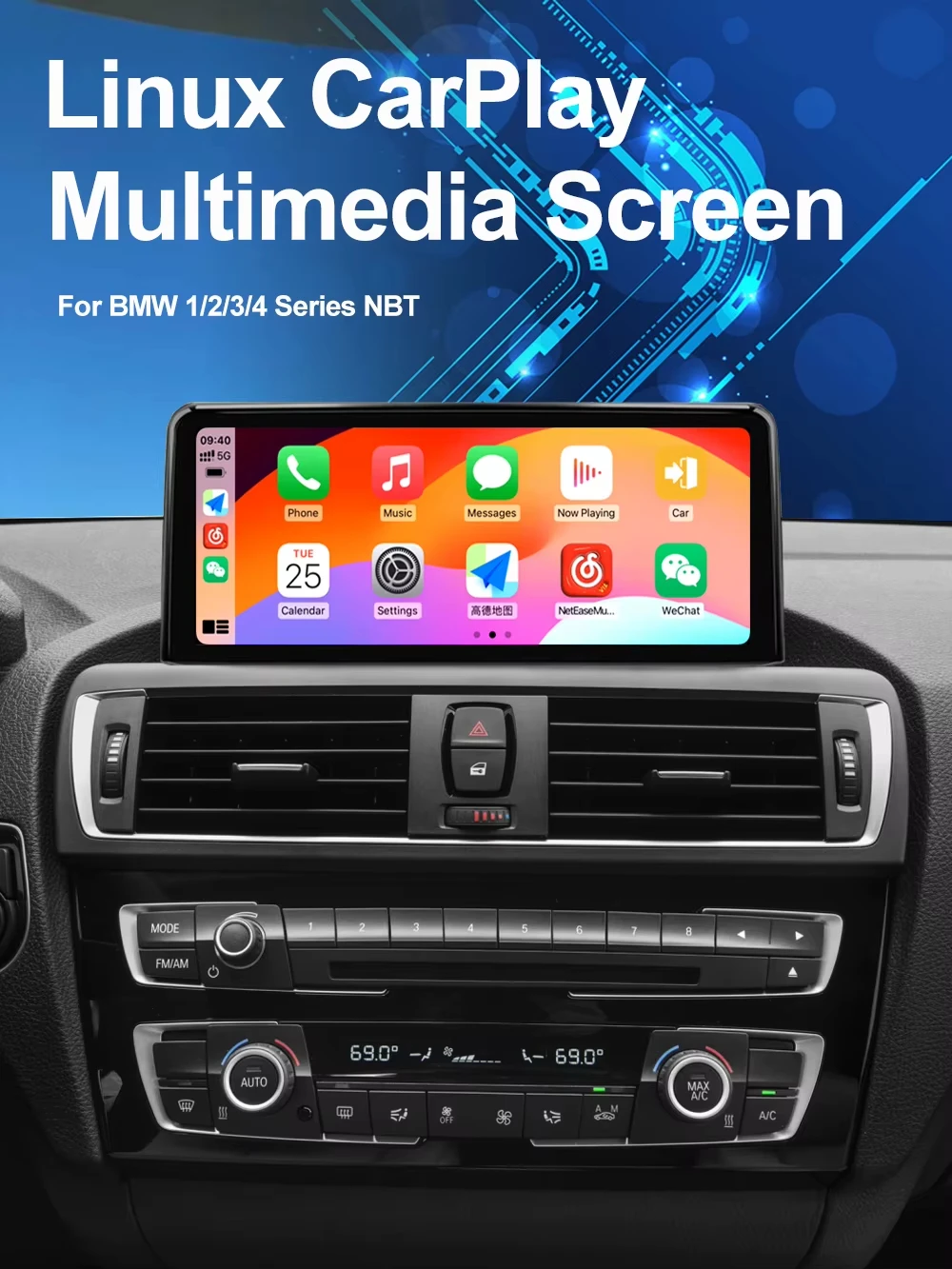
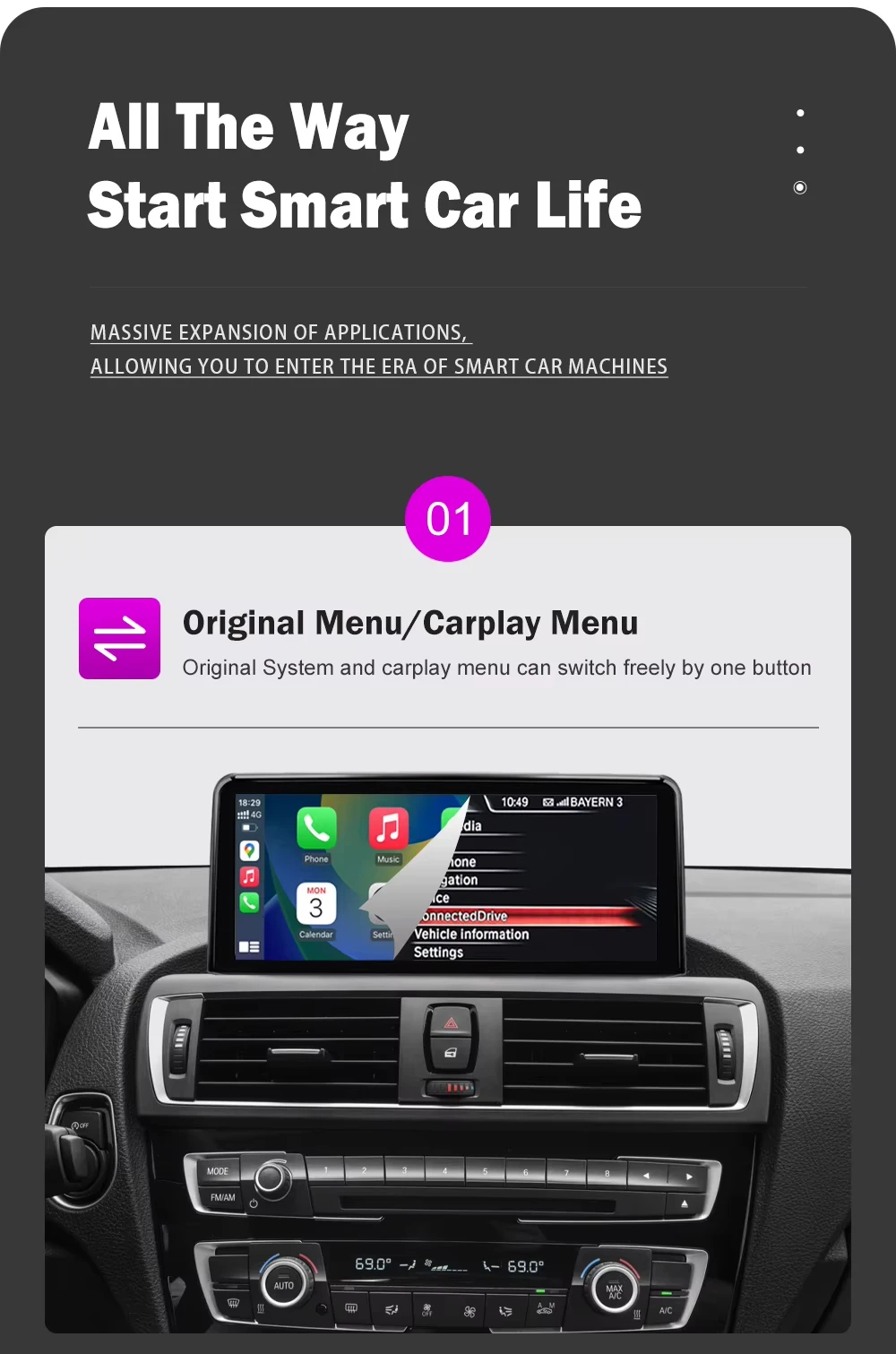
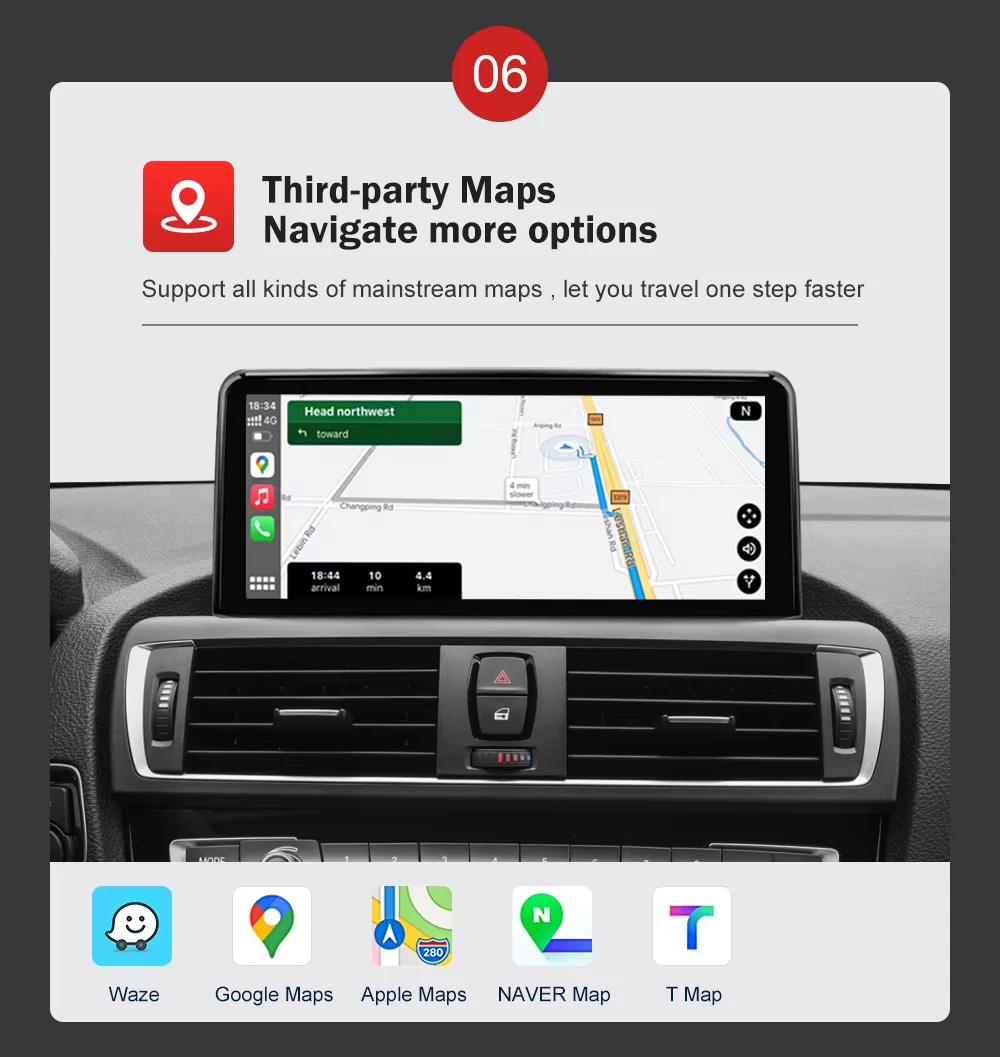
Modernize your BMW interior with the LuxRide™ BMW NBT DriveScreen, featuring a large 10.25-inch 1920×720 display and wireless smartphone connectivity.
Designed for selected BMW models equipped with the NBT system, it brings a more modern multimedia experience to your dashboard while maintaining a clean, OEM-inspired appearance.
⭐ FEATURES
- 10.25” high-resolution display
- 1920 × 720 resolution
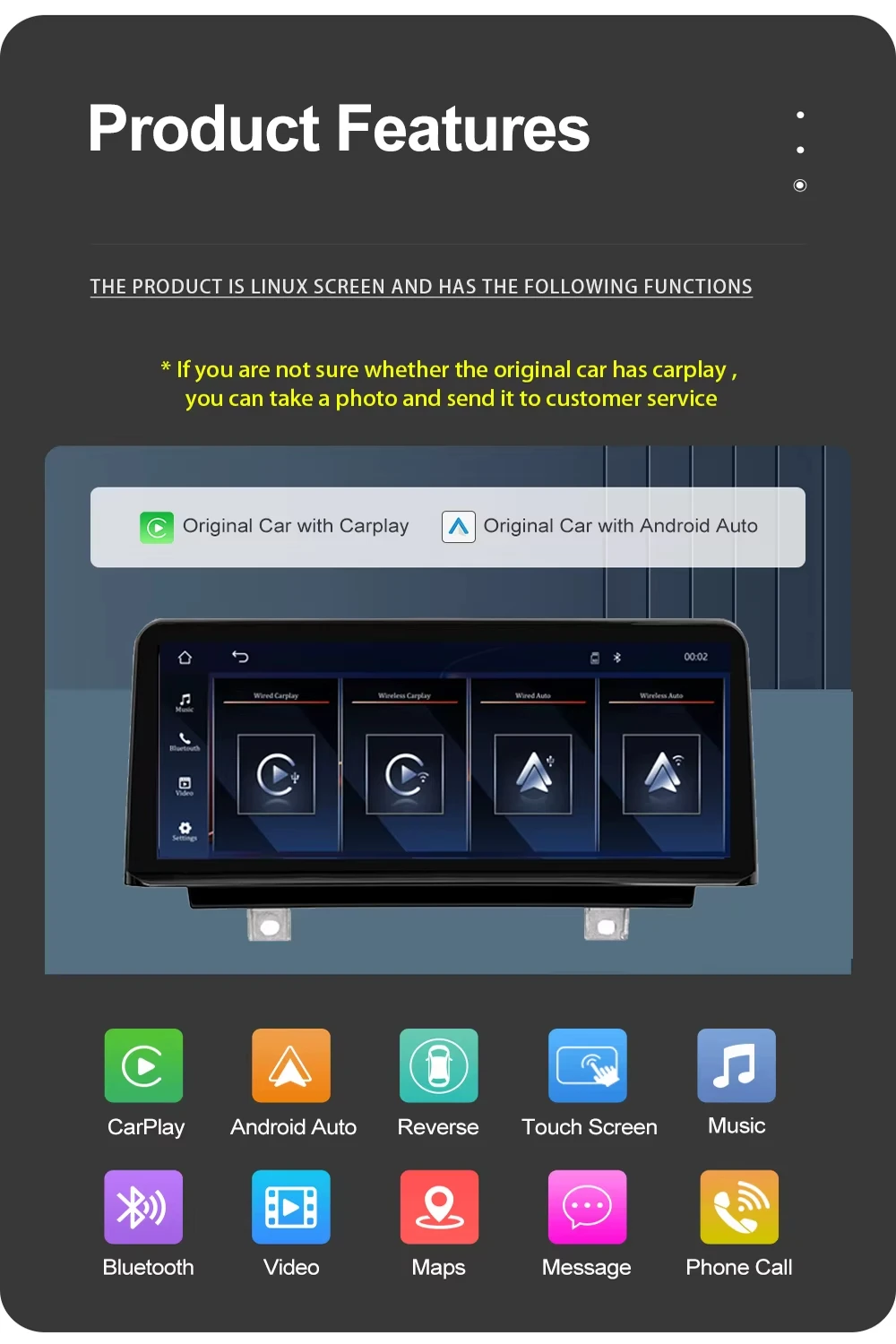
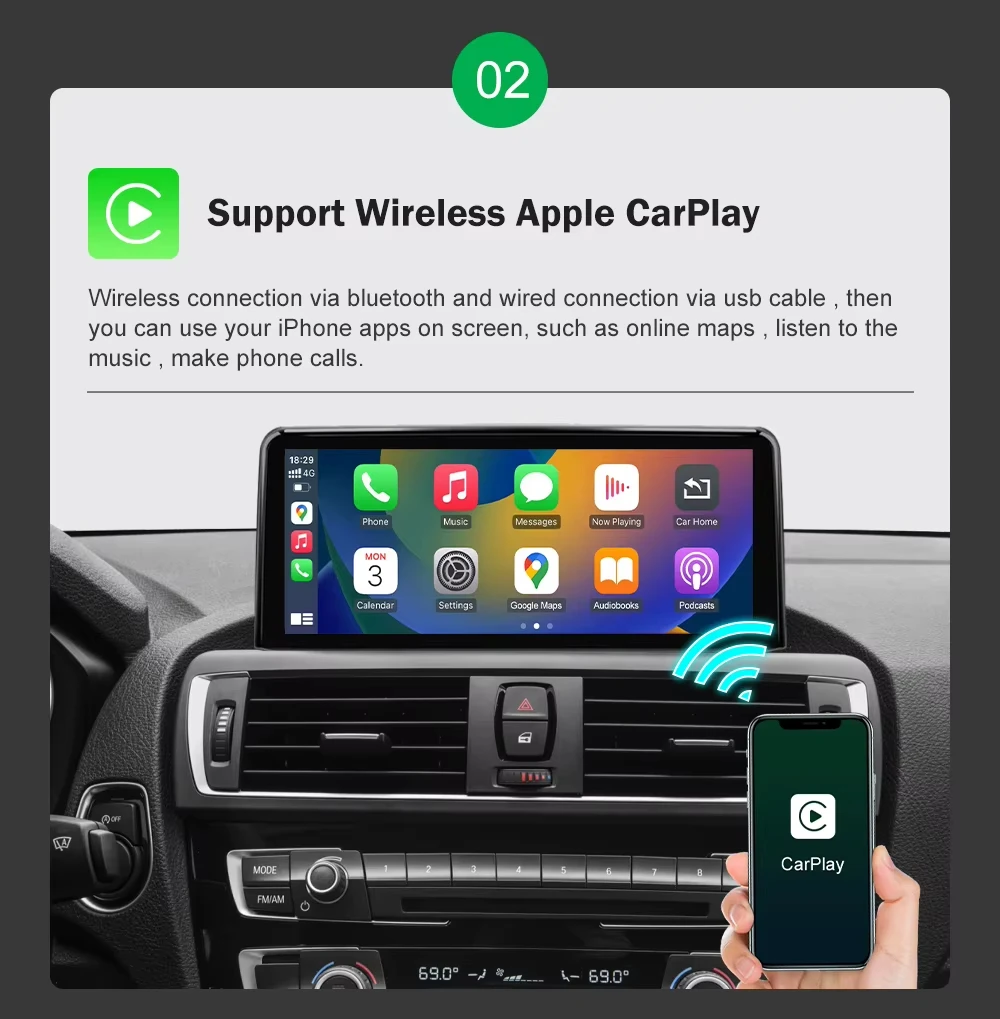
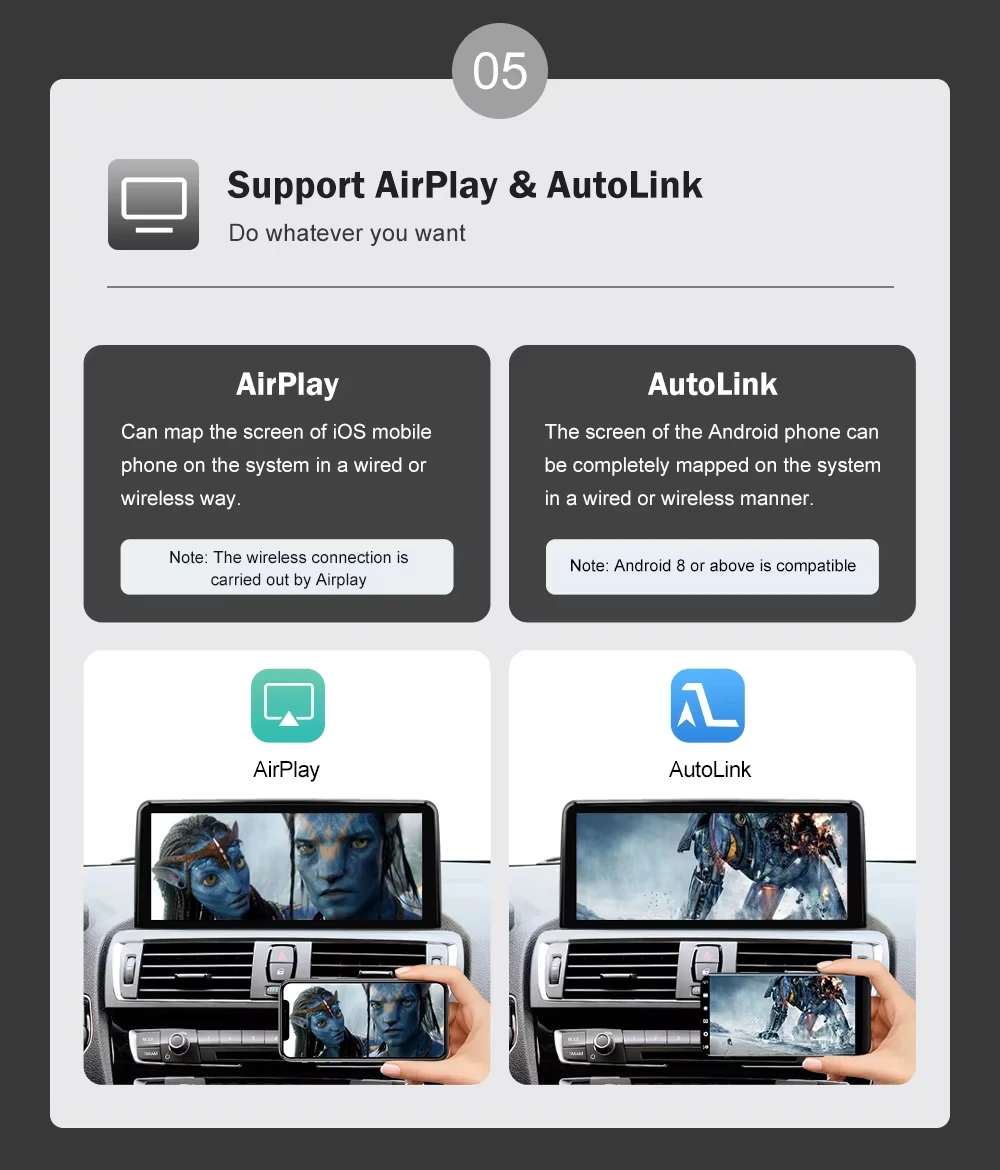
- Wireless Apple CarPlay
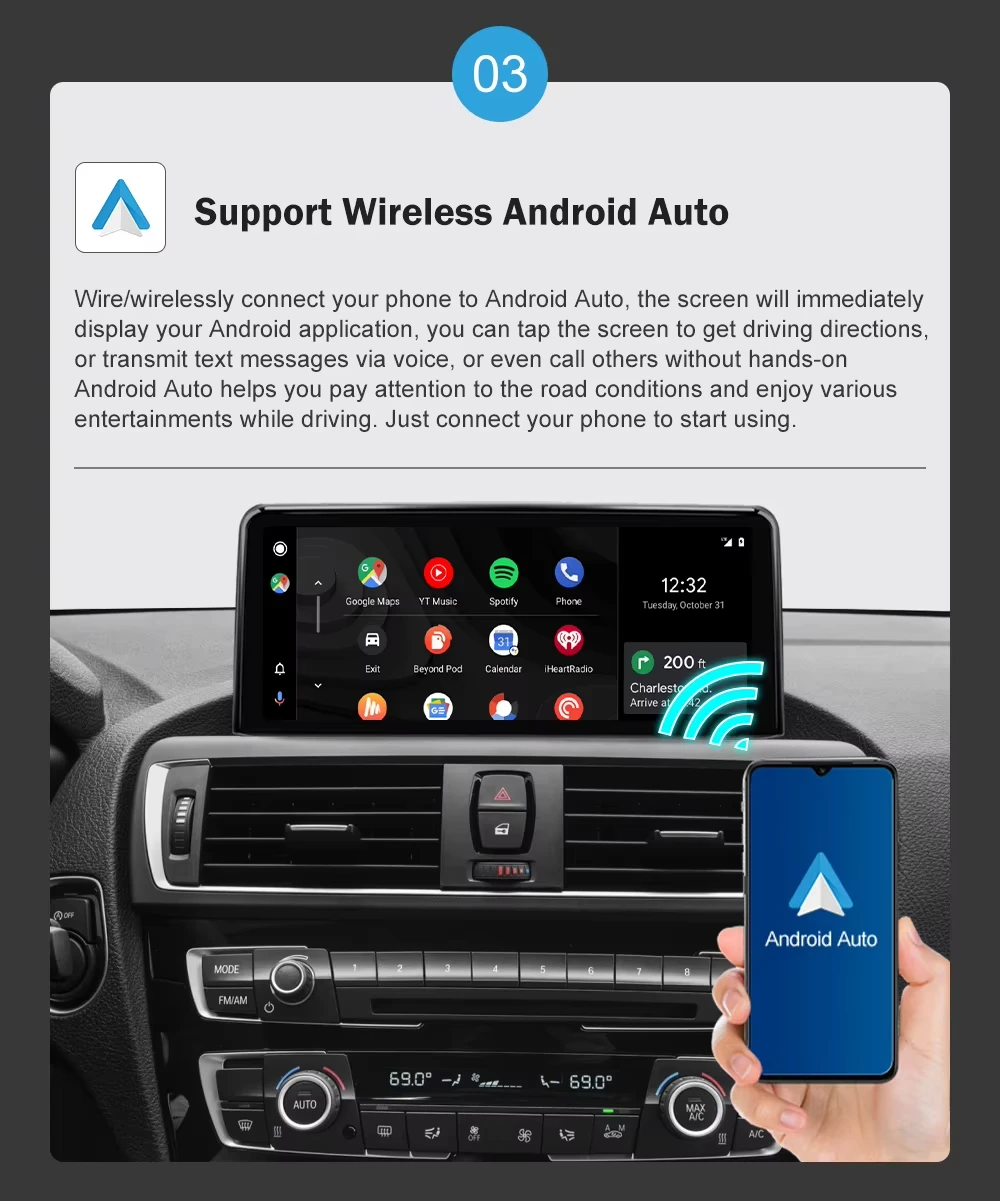
- Android Auto support
- Multimedia touchscreen experience
- Designed for selected BMW NBT applications
- Modern OEM-inspired interior upgrade
- Compatible with selected BMW F-Series models
🚘 COMPATIBILITY
- BMW F20 / F21
- BMW F22
- BMW F30 / F31
- BMW F32 / F33 / F34 / F36
- Selected NBT-equipped models, 2013–2017
⚠️ Compatibility:
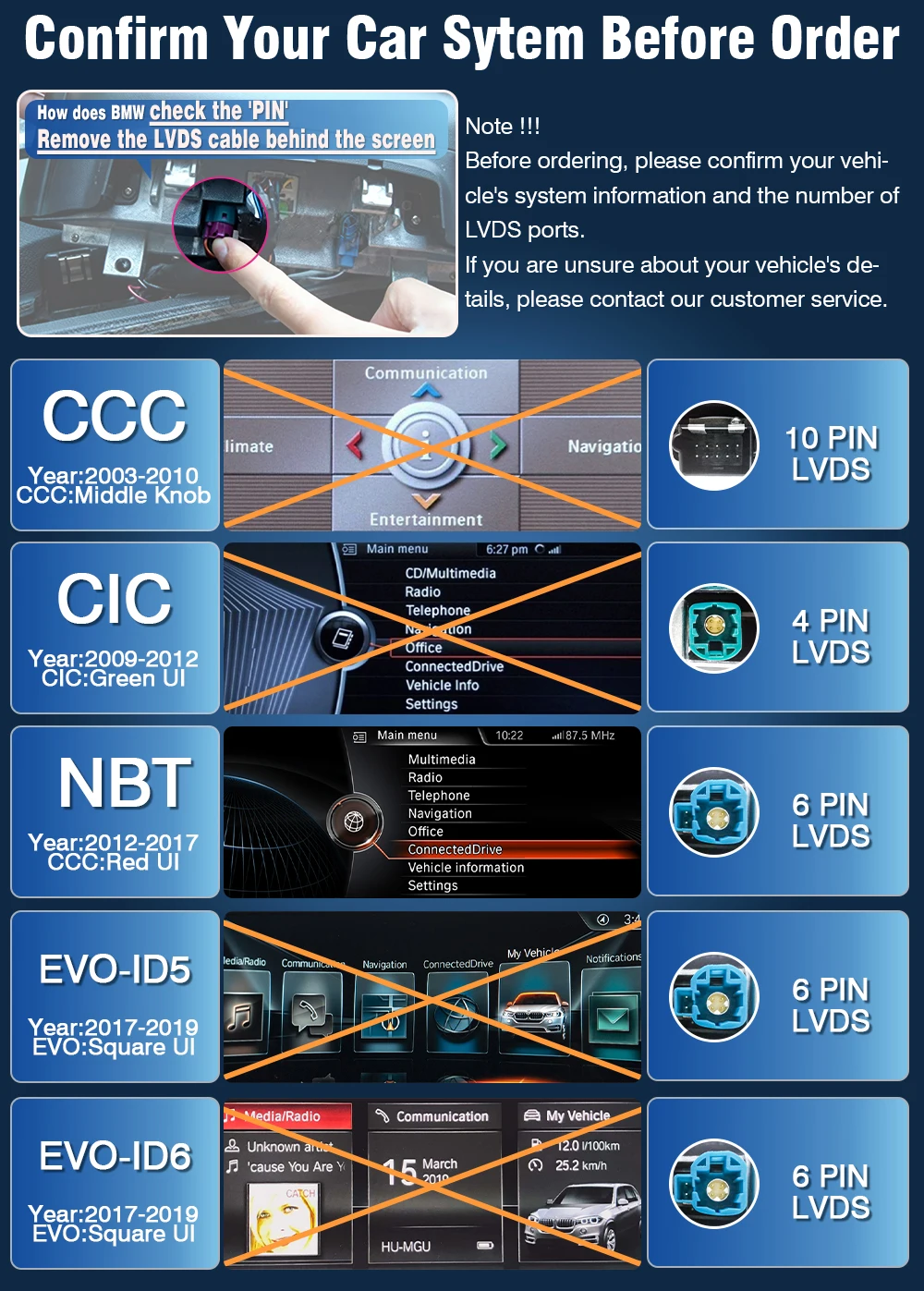
Please verify your BMW model, production year, NBT system, original screen configuration and connectors before ordering. Fitment can vary between vehicles.
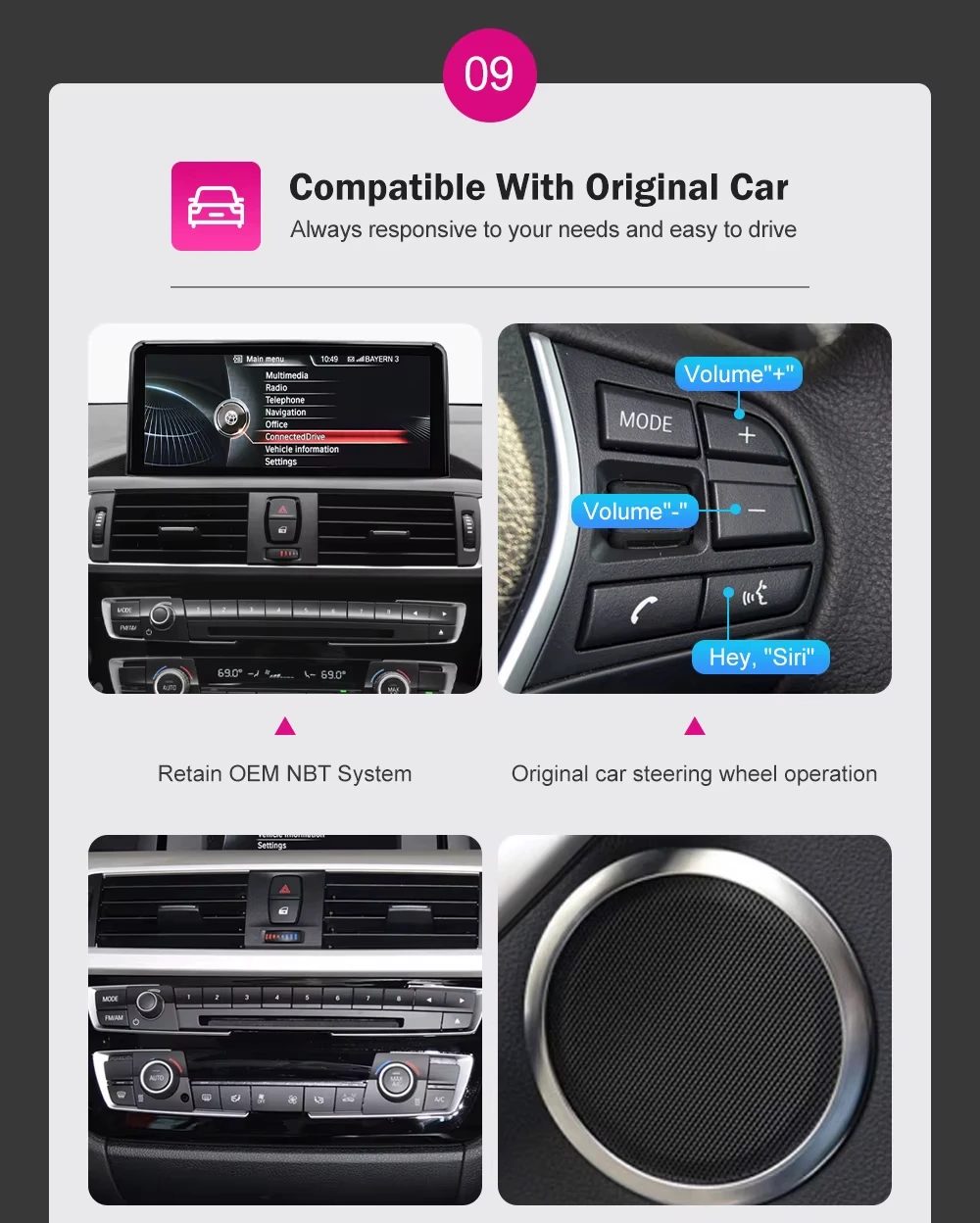
How do I set the basic parameters after installation?
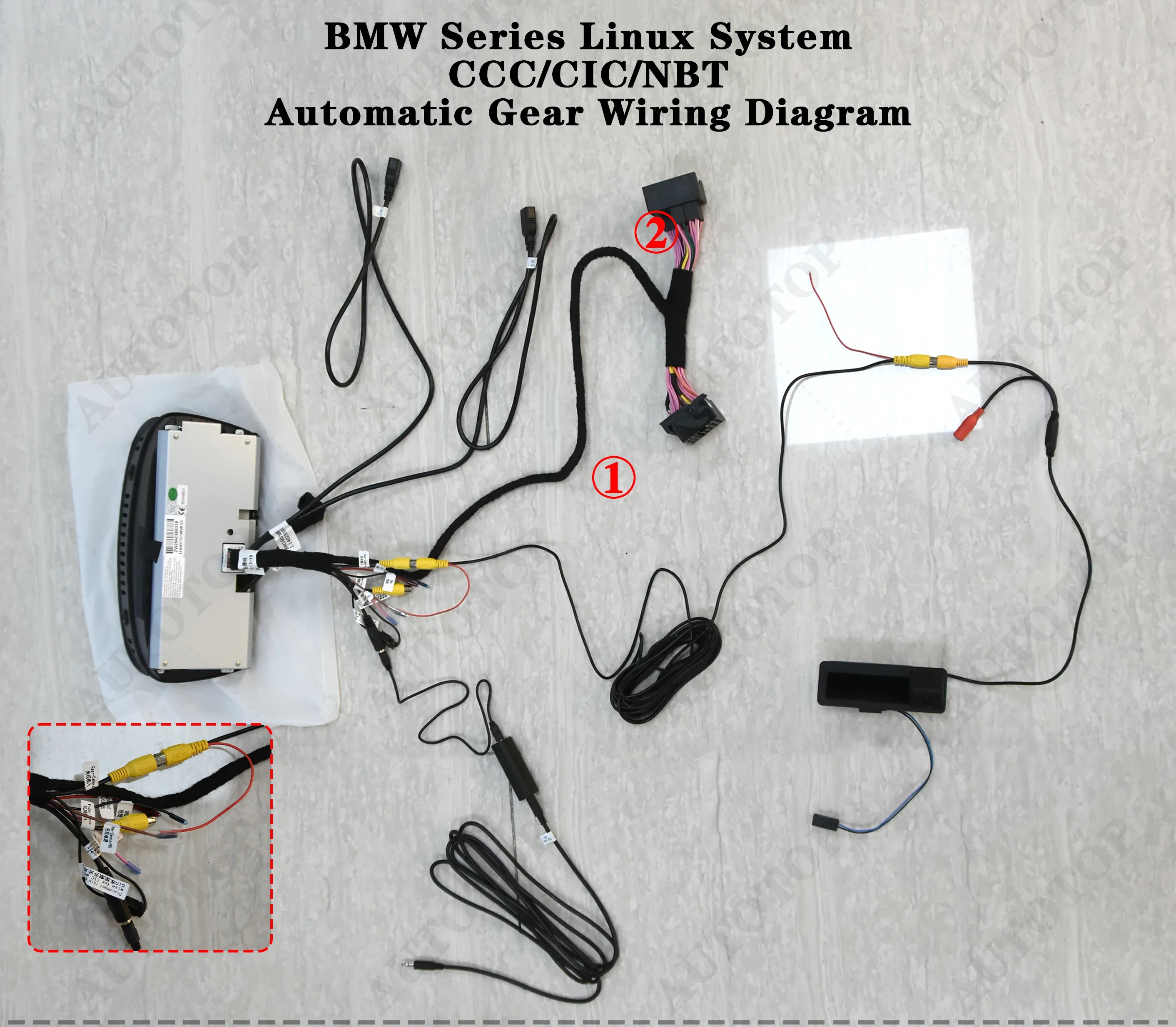
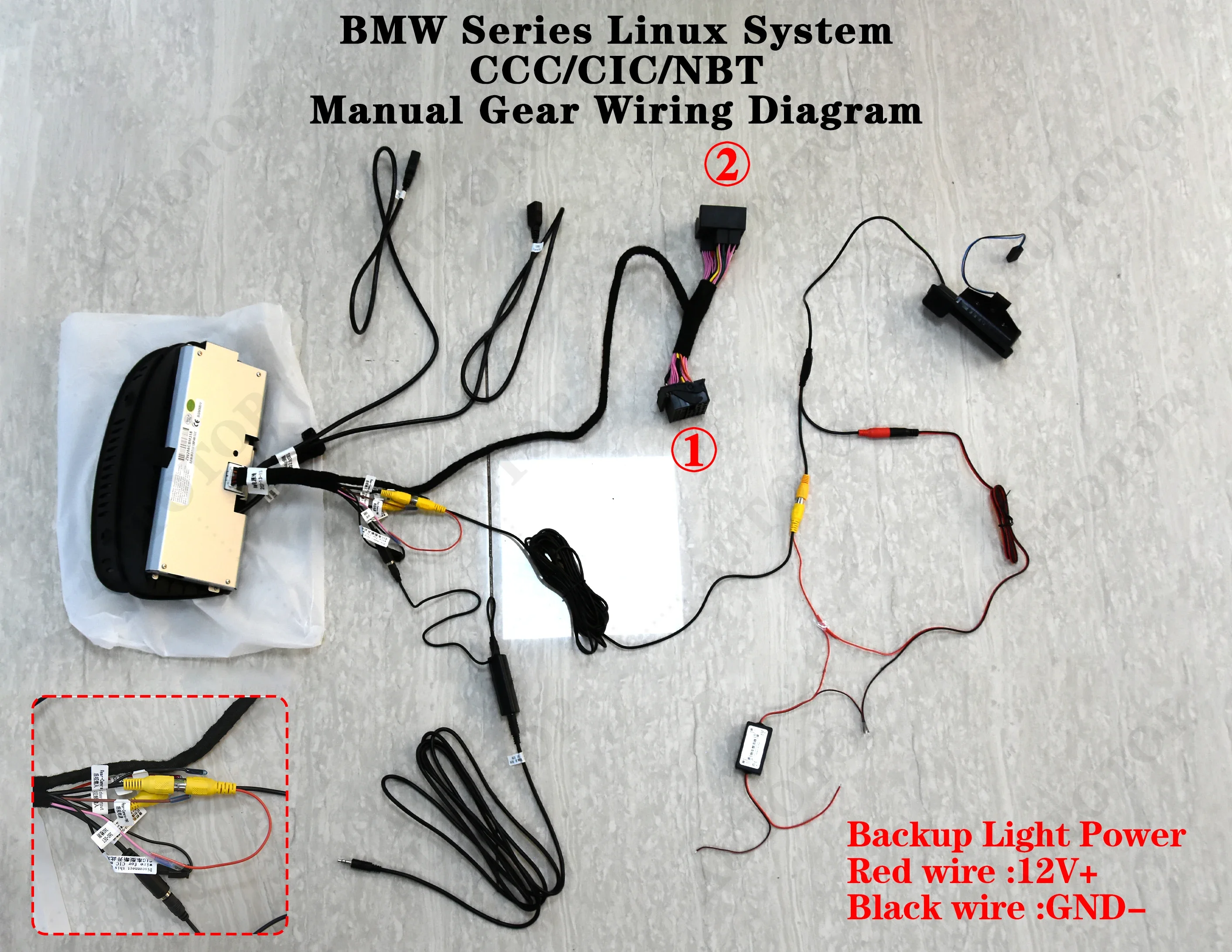
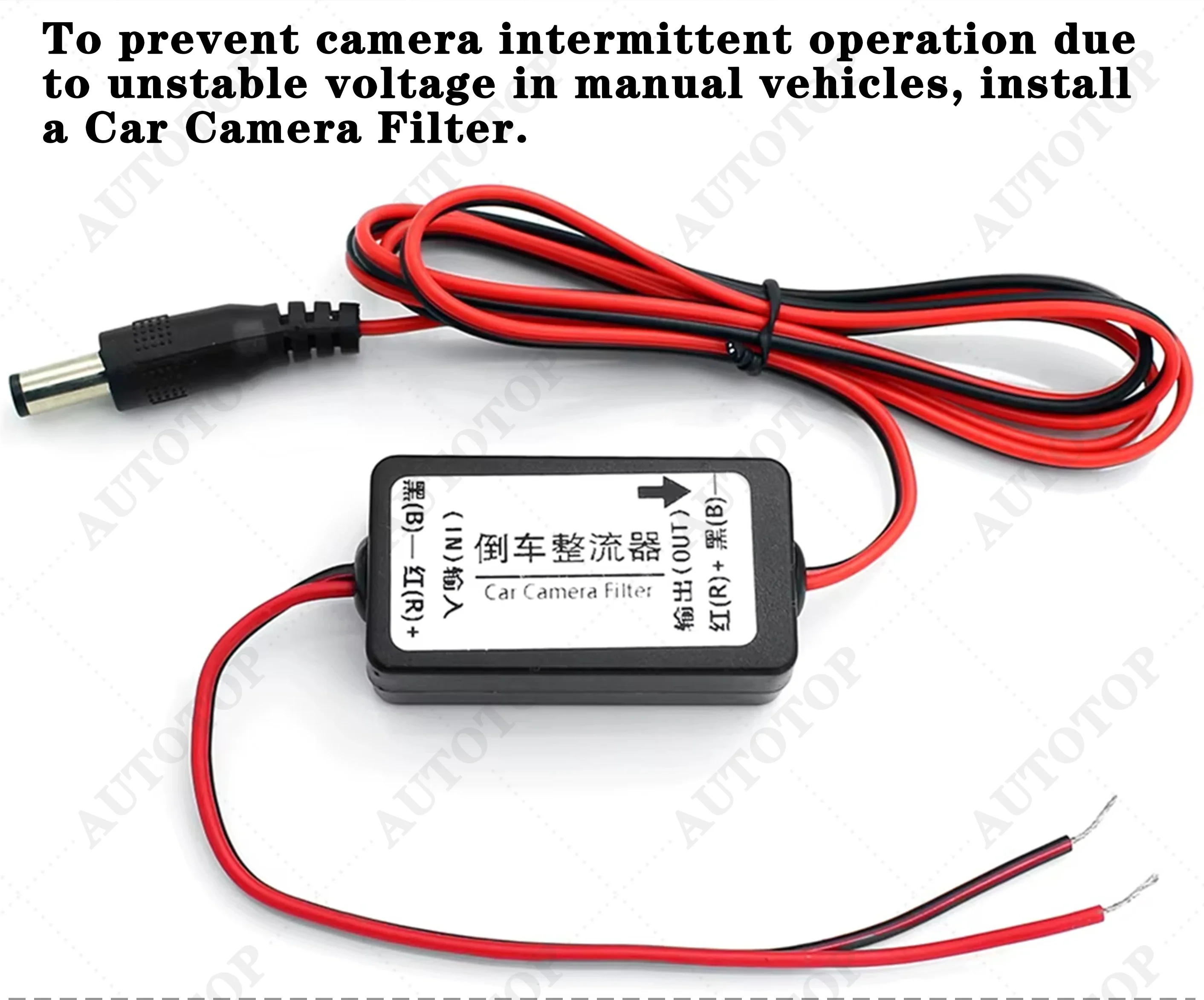
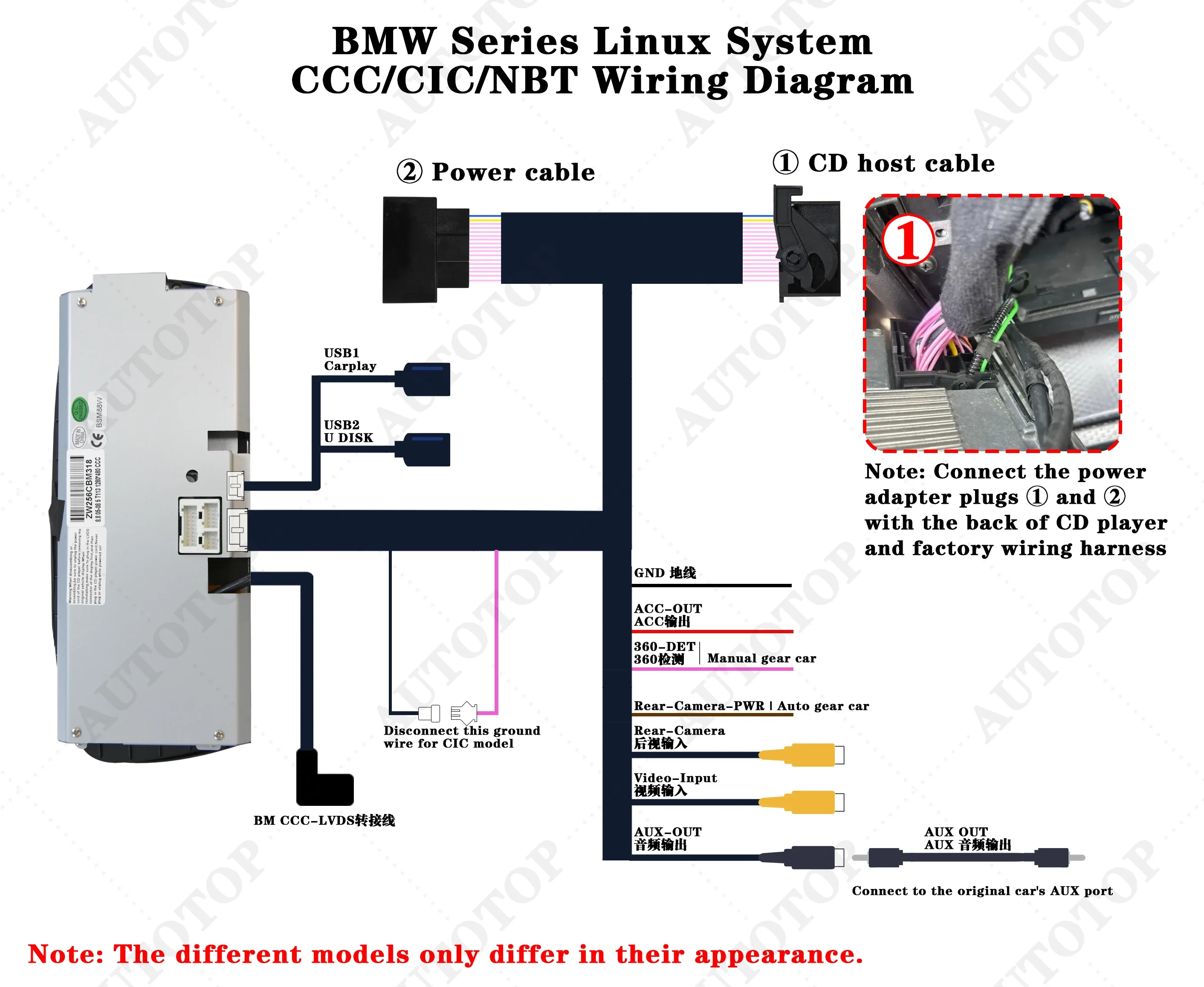
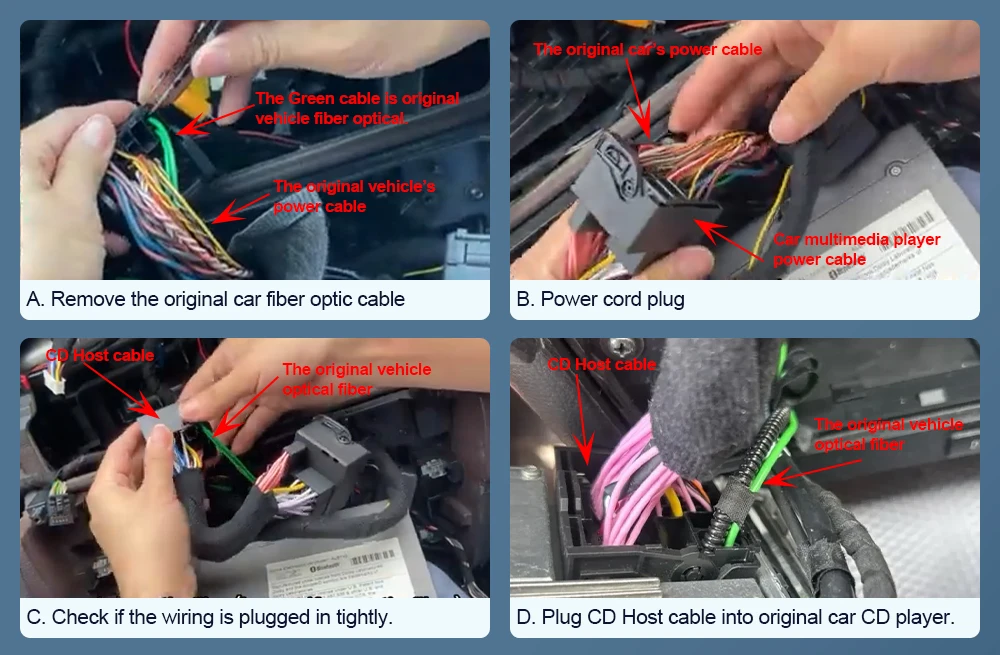
I. You also need to make sure the original optic fiber cable(Green cable) is connected to our power cable,like the below photo.
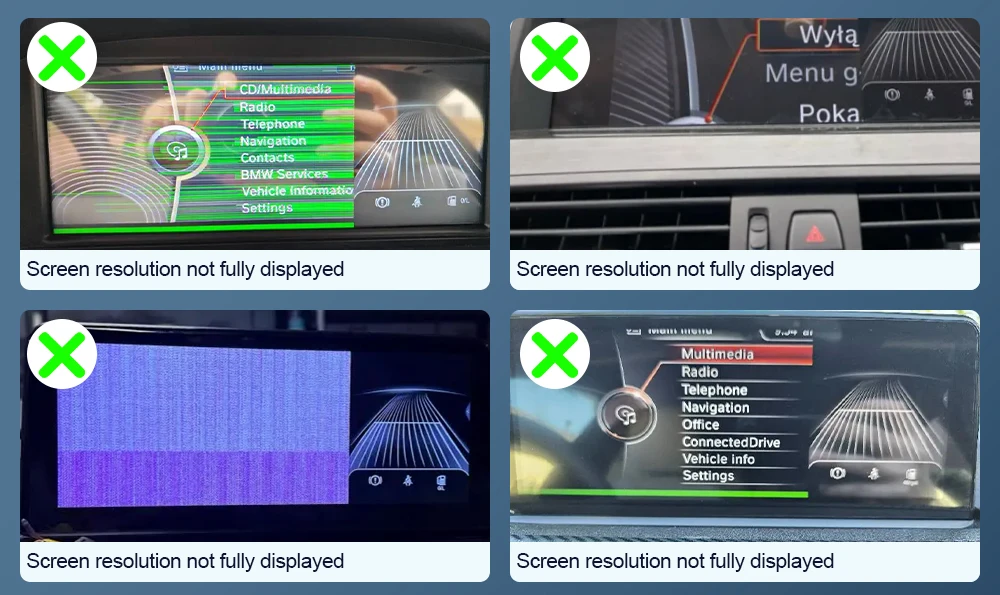
II. If the following situations occur, it's not due to screen damage; you simply need to adjust the screen resolution settings.
 III. Steps for setting screen resolution:
A. Choose the setting option.
B. Choose system - Factory
C. The factory password is 8866.
D. Select the original car's models and screen size
E. Select the correct resolution one by one,Continue until the original vehicle system menu displays correctly.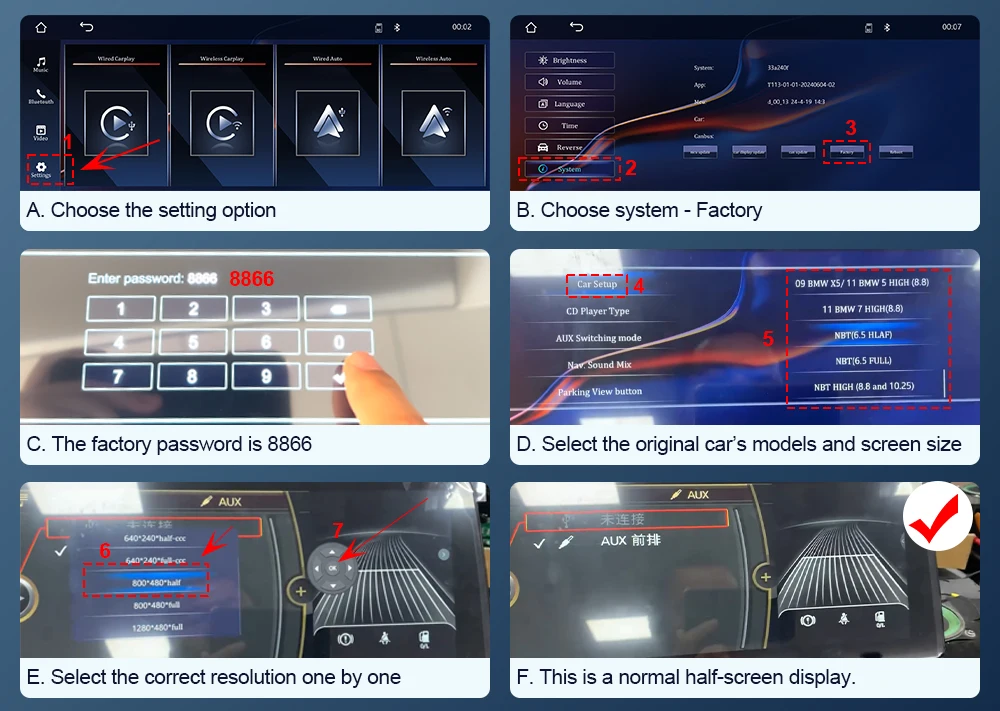 IV. Questions: In the CarPlay system, if you find there is no sound when playing music, you can first check whether you are using a Bluetooth connection.
Solution:
A. Choose the setting option.
B. Choose the system -- Factory
C. Enter 8866 in the factory.
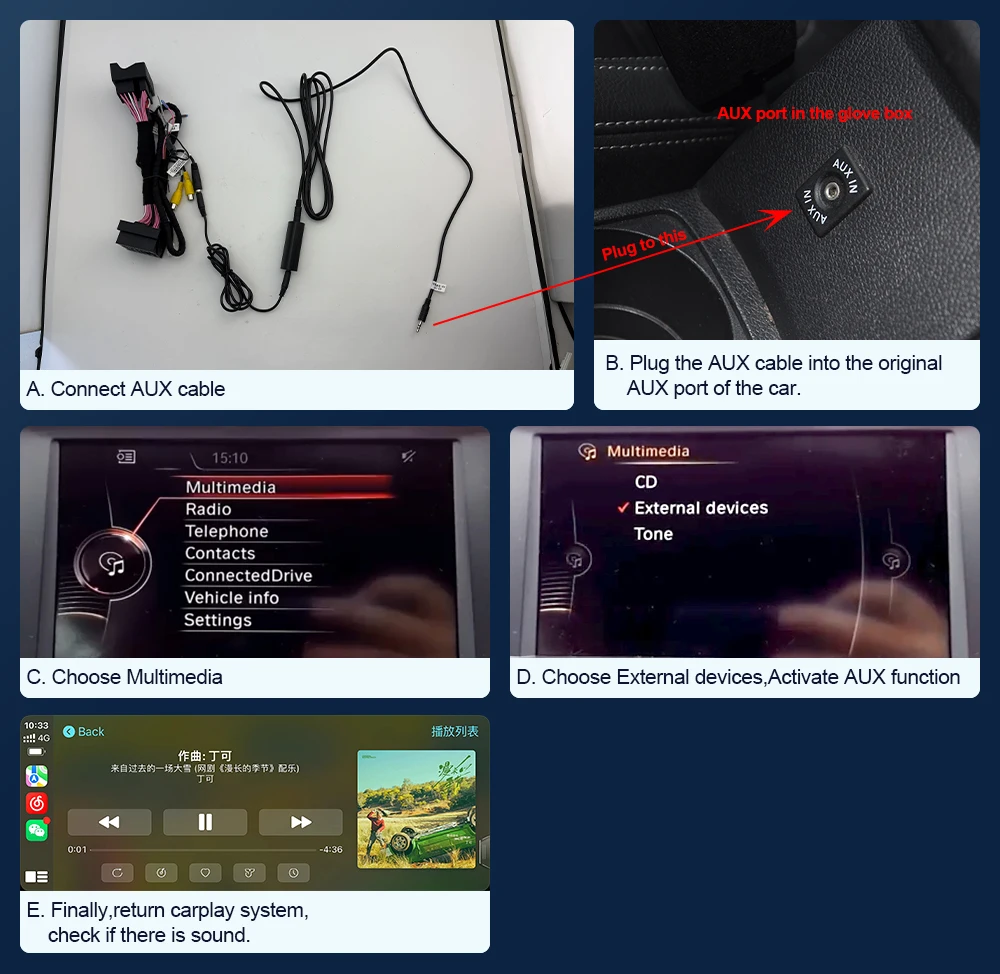
D. Find out CP/AA voice-grade channel -- Car.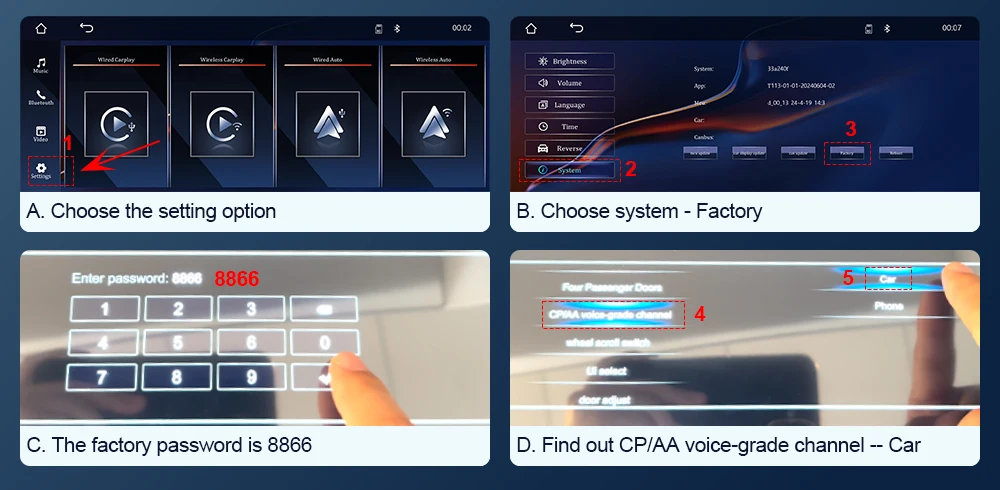 V. If you find that you have successfully connected via Bluetooth, but there is still no sound in the CarPlay system, you will need to purchase an AUX cable locally. The method for activating the AUX settings is the same for both CIC and NBT systems.
A. Connect AUX cable
B. Plug the AUX cable into the original AUX interface in the glove box.
C. Choose Multimedia.
D. Choose External devices,Activate AUX functionChoose the AUX front.
E. Finally,return carplay system,check if there is sound.
F. If there's still no sound, try connecting the AUX cable to your phone's AUX port to test whether the phone produces sound.
If you hear sound, the car's AUX port is functioning properly.
If there's no sound, the car's AUX port may be faulty and require repair.